
Overview of Google Docs Editing Features
Google Docs offers a built-in spelling and grammar checker, making it a suitable tool for users already engaged in drafting reports, proposals, and other documents within Google Workspace. This functionality eliminates the need for a separate application or subscription for basic corrections.
Limitations of Built-in Editing Tools
While Google Docs provides essential editing capabilities, it lacks the comprehensive feedback offered by specialized writing assistants. Tools like Grammarly, Sapling, Ginger, Scribens, and LanguageTool give a more extensive analysis of sentence structure, tone, clarity, punctuation, and writing style. Many of these dedicated platforms also offer browser extensions, mobile applications, and team management features to enhance professional writing.
Functionality of Google Docs Grammar Checker
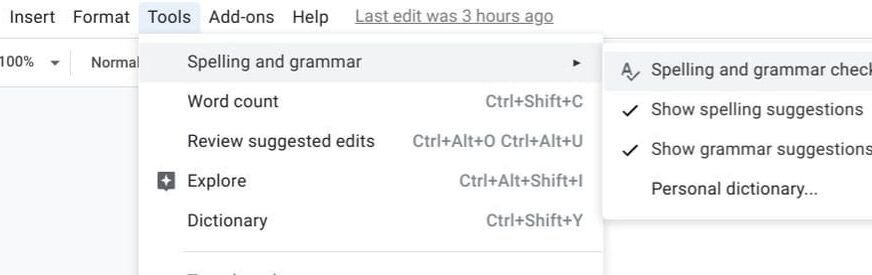
In Google Docs, potential spelling errors are flagged with a red underline, while grammar issues are highlighted in blue. To access these features, navigate to Tools, select Spelling and grammar, and ensure that “Show spelling suggestions” and “Show grammar suggestions” are activated. Users can then review the suggestions one by one, which can be initiated by selecting Tools followed by Spelling and grammar check.
Customizing your Dictionary in Google Docs
Google Docs has provided spelling suggestions for several years. Any word not found in the dictionary is flagged, allowing users to add words to a personal dictionary. This feature is useful for incorporating company names or industry-specific terminology, which can be done via Tools > Spelling and Grammar > Personal Dictionary.
Comparative Analysis with Other Grammar Checkers
An assessment was performed using a sample text containing intentional errors to evaluate Google Docs alongside other grammar checkers. The sample consisted of six sentences with seven constructed mistakes, covering spelling, subject-verb agreement, word choice, and missing punctuation. The errors included “are” instead of “is,” “speling” instead of “spelling,” and “gooder” instead of “better.”
Google Docs Grammar Check Performance
In the latest evaluation, Google Docs identified five out of the seven intentional errors. While it successfully flagged issues related to spelling, subject-verb agreement, word choice, and verb form, it overlooked the phrase “It should get gooder,” as well as the missing punctuation following that sentence. The tool presents each suggestion one at a time in a side panel, allowing users to either accept or ignore each correction.
Performance of Grammarly
Grammarly’s free version detected six of the seven errors in the same sample, recognizing issues related to spelling, subject-verb agreement, and word choice while also assigning a writing quality score of 62. It displayed six grammar suggestions, although more advanced features require a paid subscription.
Evaluation of Sapling
Sapling’s free grammar checker fared similarly, identifying six out of the seven errors. The tool highlighted each problem directly within the editor and offered both spelling and stylistic suggestions, all without the need for any installation.
Performance Analysis of Other Tools
Ginger, Scribens, and LanguageTool also identified six errors out of seven. However, none of these tools, including Google Docs, caught the missing punctuation after the phrase “It should get gooder.” Scribens stood out by providing explanations for some corrections, enhancing its usability as an educational tool for users looking to understand their writing mistakes better.
Conclusions from the Comparative Study
Ultimately, while Google Docs remains a convenient tool for basic edits, dedicated grammar checkers like Grammarly, Sapling, Ginger, and Scribens outperform it in terms of comprehensive analysis and user engagement. The choice between using a built-in tool or a specialized application largely hinges on whether a user prioritizes ease of use or seeks more advanced writing assistance.